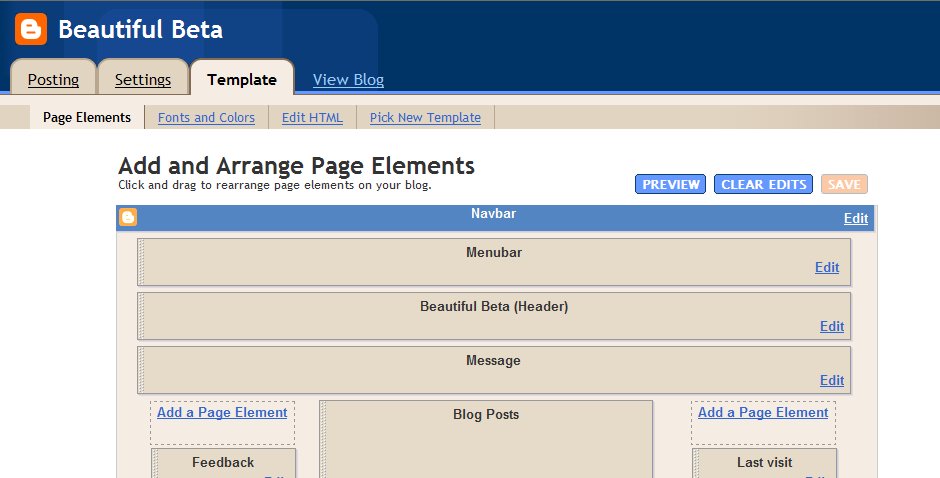
In this Page Layout you can see where I have added the Menubar. The code of this section is highlighted in red:
<div id='header-wrapper'>
<b:section class='menubar' id='menubar' maxwidgets='1' showaddelement='yes'>
<b:widget id='LinkList2' locked='true' title='Menubar' type='LinkList'/>
</b:section>
<b:section class='header' id='header' maxwidgets='1' showaddelement='no'>
<b:widget id='Header1' locked='false' title='Beautiful Beta (Header)' type='Header'/>
</b:section>
</div>
To the CSS-part of your template, add coding for the menubar-id:
#menubar h2 {display:none;}
#menubar ul {
list-style: none;
}
#menubar li {
float: left;
}
#menubar a:link, #menubar a:visited, #menubar a:hover {
padding: 5px;
display: block;
color: $headerTextColor;
}
#menubar a:hover {
background-color: $headerCornersColor;
}
The menubar title is hidden, so that only the options are visible.
The list-elements are set to none, so that there are no bullets in front of the menu options. And if a menu-option is hovered over, it is highlighted.